
Create Your Creator Media Kit Using Canva Pro
42mBeginner2022-12-23
Authors
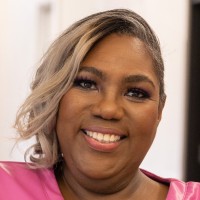
Jai Stone
Digital Brand and Content Strategy Coach
Course details
If you’re a creator, you need an effective media kit to make yourself and your brand stand out. Creator and strategic brand coach Jai “BrandMother” Stone provides step-by-step guidance on how to create the key elements of your creator media kit using Canva.
Become a successful creator with a results-driven media strategy to boost your visibility, credibility, and reputation. Learn what belongs on your cover page, how to create a headliner bio and a professional bio, how to list media appearances, how to highlight your skills, and much more. By the end of this course, you’ll be prepared to create and design a multi-platform media kit that positions your online presence and expertise in a way that attracts media attention.
Become a successful creator with a results-driven media strategy to boost your visibility, credibility, and reputation. Learn what belongs on your cover page, how to create a headliner bio and a professional bio, how to list media appearances, how to highlight your skills, and much more. By the end of this course, you’ll be prepared to create and design a multi-platform media kit that positions your online presence and expertise in a way that attracts media attention.
Skills covered
CanvaCreator ContentInfographicsContent MarketingGraphic DesignMarketing
Concepts
0. Introduction
- 01 - Canva for creators
1. Preparing for Your Media Kit
- 02 - Are you a media-friendly creator
- 03 - Benefits of Canva Pro
- 04 - Setting up your media brand kit
2. Elements of Your Media Kit
- 05 - Media kit pages overview
- 06 - What belongs on the cover page
- 07 - Bio pages - Headliner bio and professional bio
- 08 - Credibility - Media pages for everyone
- 09 - Credibility - Accomplishments and accolades
- 10 - Positioning - Expert topics
- 11 - Positioning - Providing social proof
- 12 - Contact page - How to book you
- 13 - Photos, images, and styles
3. Design Your Kit in Canva
- 14 - Designing your page layout
- 15 - Creating your image frames
- 16 - Laying out text
- 17 - Tips for working in Canva
Conclusion
- 18 - Next steps - Buying templates and finding media opportunities