
Running a Professional Webinar
3h 10mBeginner2017-10-13
Authors
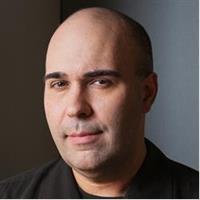
Richard Harrington
Digital Video Expert, Educator, Speaker
Course details
Join Richard Harrington as he walks through the necessary steps to ensure you run a successful webinar with no technical hiccups. Richard has appeared in front of the camera as a webinar host, as well as directed thousands of hours of live broadcast television. In this course, he offers practical advice for organizing, producing, and running a webinar that works with most hosting platforms. He explores choosing the right webinar hosting platform, organizing your content, selecting the right microphone and camera, and more.
Learning objectives
Choosing the right webinar platform and host
Organizing your content
Planning for audience participation
Inviting attendees to the webinar
Setting up your presentation computer
Selecting a microphone for a webinar
Using a pro camera via Thunderbolt or USB 3
Adding a VR camera
Optimizing slides for a webinar
Holding a rehearsal event
Learning objectives
Choosing the right webinar platform and host
Organizing your content
Planning for audience participation
Inviting attendees to the webinar
Setting up your presentation computer
Selecting a microphone for a webinar
Using a pro camera via Thunderbolt or USB 3
Adding a VR camera
Optimizing slides for a webinar
Holding a rehearsal event
Skills covered
Meeting SkillsProfessional DevelopmentLeadership and ManagementOne-Off
Concepts
Welcome
- Welcome
- What you should know before watching this course
The Role of Webinars, and on Choosing the Right Platform
- Educating an audience
- Creating action or conversion
- Key features in a webinar hosting platform
- Choosing a webinar host
Organizing Your Webinar Content
- Outlining the webinar
- Writing promotional copy
- Integrating guest experts
- Planning for audience participation
- Inviting attendees to the webinar
Setting Up Your Presentation Computer
- Internet connection options
- Screen resolution choices
- Minimizing data transfer
- Reducing audio interference
- Removing distractions and embarrassment
- Live streaming tools
Selecting a Microphone for a Webinar
- Selecting and using a headset microphone
- Selecting and using a desktop microphone
- Selecting and using a lavaliere microphone
- Selecting and using a boom microphone
- Adding audio reinforcement
Selecting a Camera for a Webinar
- Using your built-in camera
- Selecting and using a USB camera
- Selecting and using a pro camera via Thunderbolt or USB 3
- Adding a VR camera
- Adjusting camera controls
Strategies for Visuals
- Optimizing slides for a webinar
- Using compelling visuals
- Converting slides - PDF, JPEG or PNG
- Uploading video to YouTube for a webinar
- Organizing demonstration assets
Holding a Rehearsal
- Testing your connection speed
- Testing picture and sound
- Holding a rehearsal event
Going Live
- Mastering your webinar platform
- Monitoring on a second computer
- A checklist before going live
- An overview of Facebook Live
- An overview of YouTube Live and Google Hangouts on Air
Conclusion
- Next steps